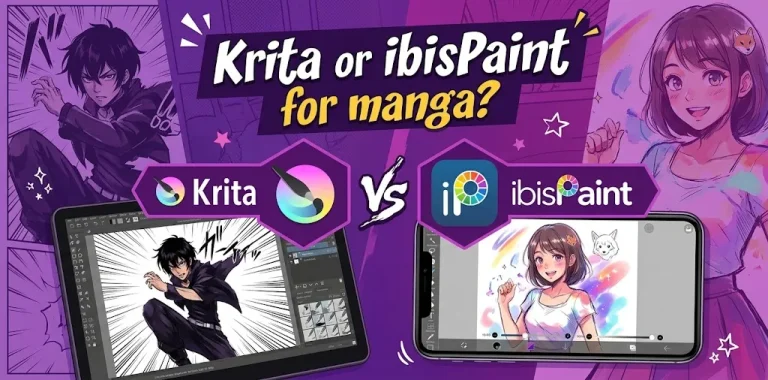
Krita is generally the better choice for artists who want a desktop-focused manga workflow, especially for detailed page layouts, custom brushes, vector tools, and longer projects. ibisPaint is often easier for beginners and especially convenient on phones and tablets, with dedicated manga tools such as screen tones, frame division, speech bubbles, and manga manuscript templates.
Both programs can handle manga, but they are designed around somewhat different drawing experiences. The better choice depends less on which app has more features and more on where you draw, how you build manga pages, and how much control you want over your workflow.
For a beginner making short manga pages on an iPad, Android tablet, or phone, ibisPaint can feel more approachable. For someone building a serious desktop-based comic workflow, Krita has stronger advantages.
Krita vs ibisPaint for manga at a glance
| Category | Krita | ibisPaint |
|---|---|---|
| Best for | Desktop manga and illustration | Mobile/tablet manga and beginner artists |
| Manga panels | Strong, with vector and comic panel tools | Excellent dedicated frame tools |
| Screen tones | Available through brushes, patterns, and resources | Dedicated manga screen-tone features |
| Speech bubbles | Vector tools and text support | Dedicated manga balloon and text tools |
| Brushes | Highly customizable brush engines | Very large brush and material library |
| Manga manuscript setup | Flexible, but more hands-on | Dedicated manga manuscript workflow |
| Beginner friendliness | Moderate | High |
| Mobile experience | More limited | One of its biggest strengths |
| Desktop workflow | Excellent | Good |
| Animation | Yes | Not its main focus |
| Cost approach | Free and open source | Free version with paid upgrades |
| Best choice for long comic projects | Krita | ibisPaint can work well, but Krita has an edge |
| Best choice for drawing on a phone | Not ideal | ibisPaint |
The key difference is simple: Krita feels more like a full digital art studio, while ibisPaint feels more like an illustration and manga app built for quick, accessible drawing.
What makes Krita good for manga?
Krita is a free, open-source digital painting program designed for artists, illustrators, and comic creators. Its feature set includes brushes, layers, stabilizers, drawing assistants, vector tools, text, and comic-focused features.
Its comic workflow also includes tools for editing and creating comic panels, making it useful for artists who want to build complete pages on a desktop.
Strong brush customization
Manga line art often depends on having a pen that feels right. Krita gives you substantial control over its brush engines, including settings for different types of digital painting and drawing.
That matters if you want to build a personal inking setup.
For example, you might create:
- A firm pen for clean outlines
- A pressure-sensitive brush for expressive line weight
- A softer brush for shadows
- A textured brush for rough sketches
- A specialized brush for effects or backgrounds
Instead of relying mainly on preset brushes, Krita lets experienced artists spend more time shaping their tools around their own style.
Strong desktop workflow
Krita is particularly comfortable when you are working with a keyboard, drawing tablet, large monitor, or pen display.
That can be a major advantage for artists producing:
- Multi-page manga
- Detailed backgrounds
- Character sheets
- Cover illustrations
- Webcomics
- Long-form comic projects
The larger desktop workspace also gives you room for layers, references, brush settings, and other tools without everything competing for a small touchscreen.
Vector and comic panel tools
Krita includes vector tools for comic panels, word bubbles, and text.
This is useful when your manga requires clean panel borders and reusable page elements.
Krita is free and open source
Krita is a professional free and open-source painting program.
That makes it especially attractive if you want to avoid paying for a professional art application just to start learning manga.
What makes ibisPaint good for manga?
ibisPaint takes a different approach. It is built around digital drawing on smartphones and tablets while also offering desktop versions. Its feature set specifically includes manga tools such as screen tones, frame division, text input, speech bubbles, rulers, and manga manuscript features.
That dedicated manga focus is one reason beginners may find it easier to start with.
Dedicated manga tools
ibisPaint includes tools specifically intended for comic creation.
Its manga features include:
- Screen tones
- Frame Divider
- Speech bubbles
- Text tools
- Perspective rulers
- Radial and speed-line effects
- Manga backgrounds
- Manga manuscript templates
The Frame Divider tool is designed specifically to help artists divide manga panels quickly.
That can save time when you are still learning how to structure comic pages.
Manga manuscript templates
This is one of ibisPaint’s strongest advantages for people who want to create manga pages for print.
The app provides manga manuscript templates with guides for the inner frame, final size, and bleed area. You can also configure resolution and color mode.
ibisPaint also supports Black & White manga canvas settings, which can be useful when preparing traditional-style monochrome manga with screen tones.
For a beginner who does not understand manga page dimensions and bleed yet, having these tools built into the application can make the setup less intimidating.
Huge selection of brushes and materials
ibisPaint has a particularly large collection of brushes and materials, along with manga-specific resources.
That gives beginners plenty of options for experimenting with different visual styles.
It also offers manga materials such as backgrounds, balloons, tracing resources, patterns, and other assets.
Excellent mobile flexibility
This is where ibisPaint has a major practical advantage.
ibisPaint supports Windows PCs, Mac, iPhone/iPad, and Android phones and tablets. Its cloud storage can also synchronize artwork between supported devices.
So you can sketch on a tablet, continue working on another supported device, and keep your drawing workflow more portable.
Which has better manga tools?
If you judge specifically by built-in manga production features, ibisPaint has a very strong case.
Its tools are explicitly organized around manga creation, including manuscript templates, frame division, screen tones, speech bubbles, text, perspective tools, and manga backgrounds.
Krita, however, gives you more of a general professional art environment with powerful comic-related tools layered into it.
So the answer depends on what you mean by “better.”
| Manga task | Better choice |
|---|---|
| Quickly creating panels | ibisPaint |
| Beginner manga workflow | ibisPaint |
| Screen tones | ibisPaint |
| Manga manuscript setup | ibisPaint |
| Drawing on a phone | ibisPaint |
| Drawing on an iPad | ibisPaint |
| Highly customized brushes | Krita |
| Desktop illustration | Krita |
| Complex digital painting | Krita |
| Large professional-style workspace | Krita |
| Vector-based comic panels | Krita |
| Free desktop art software | Krita |
| Long-term skill development in digital painting | Krita |
Neither application wins every category.
Is Krita or ibisPaint easier for beginners?
For most complete beginners, ibisPaint is easier to approach, especially if they are already comfortable drawing on a phone or tablet.
The interface is built around touch-based drawing, and many manga-specific functions are readily available.
Krita can take longer to learn because it behaves more like a full desktop art application. That extra complexity is not necessarily a disadvantage. It becomes useful once you need more control over your brushes, workspace, layers, vector elements, references, and larger projects.
A beginner who only wants to draw their first manga page may prefer ibisPaint.
A beginner who knows they eventually want to become a serious digital illustrator may be willing to learn Krita from the beginning.
Which is better for manga line art?
Both can produce clean manga line art.
The deciding factor is often brush feel rather than software quality.
Krita gives you extensive brush-engine customization, which is useful if you want to fine-tune stabilization, pressure response, texture, and other brush behavior.
ibisPaint also offers stabilizers and a very large collection of drawing brushes. Its mobile-first interface can make quick line-art practice particularly convenient.
If your priority is finding a pen that feels natural quickly, try both with the same drawing tablet or stylus before committing to one.
Which is better for manga panels and page layouts?
This is a closer comparison.
ibisPaint has a dedicated Frame Divider tool and manga manuscript features, so beginners can get from a blank canvas to a structured comic page quickly.
Krita uses vector and comic panel tools for page construction.
For a simple manga page, both can work well.
For someone who wants a touch-friendly manga workflow, ibisPaint has the advantage.
For someone who wants a desktop production environment with more general-purpose art control, Krita is usually the stronger choice.
Which is better for screen tones?
ibisPaint has the clearer advantage for beginners because screen tones are directly integrated into its manga-focused workflow.
The app provides dedicated screen-tone functionality and manga-specific tone resources.
It also provides tools for working with Black & White manga canvases, which can be useful for traditional-style monochrome manga.
Krita can absolutely be used for monochrome manga and textured shading, but its approach gives you more freedom rather than presenting the process as a dedicated manga pipeline.
If screen tones are one of the main reasons you are choosing an app, ibisPaint is the simpler starting point.
Which is better for speech bubbles and manga text?
Both can handle manga text, but they approach the task differently.
ibisPaint has a dedicated text tool and manga balloon materials, making it straightforward to add dialogue to pages.
Krita supports text and vector-based word bubbles as part of its broader vector workflow.
For someone creating a basic manga page, ibisPaint may feel faster.
For someone already comfortable with vector-based design, Krita’s approach can provide more flexibility.
Which is better for drawing on an iPad or Android tablet?
ibisPaint is the safer choice for most mobile and tablet manga artists.
It is designed for smartphones and tablets and supports iPhone/iPad and Android devices.
Krita also supports Android, but its mobile experience is more focused on tablets than phones.
That distinction matters.
If your entire workflow is built around an iPad, Android tablet, or phone, ibisPaint’s mobile-first design makes more sense.
If your main device is a Windows PC, Mac, or drawing display connected to a computer, Krita becomes much more attractive.
Which is better for professional manga?
There is no single answer because “professional manga” can mean several different things.
If you mean creating polished manga pages with traditional manga conventions, ibisPaint has many useful dedicated tools.
If you mean building a broader professional digital art workflow, Krita has more room to grow.
Krita is designed as a full digital painting studio and works well for comics, illustration, concept art, and other professional art workflows.
ibisPaint, meanwhile, has a very focused manga production feature set and provides tools for preparing manga manuscripts.
For a solo creator making webcomics or manga pages, either can be sufficient. Your device, preferred interface, and workflow matter more than the word “professional.”
What about cost?
Krita has a major advantage if your priority is keeping your software costs low: it is free and open source.
ibisPaint follows a freemium model, with free access and paid upgrades.
That means the cost question is straightforward:
- Want a full desktop art program without paying for the software? Choose Krita.
- Want a mobile-first manga app with optional premium features? ibisPaint is worth considering.
- Want to draw across supported mobile and desktop devices? ibisPaint’s cross-device options may be useful.
Two real-world examples
Example 1: A beginner making their first manga
Imagine a high school student in the U.S. who owns an iPad and Apple Pencil and wants to make a short black-and-white manga.
They need to sketch characters, divide panels, add screen tones, insert dialogue, and export finished pages.
For this situation, ibisPaint is probably the better starting point. Its manga manuscript tools, screen tones, frame divider, text features, and tablet support reduce the amount of setup required.
Example 2: An artist using a Windows drawing display
Now consider an artist using a Windows PC with a pen display. They want to produce a 40-page manga while also creating character illustrations, detailed backgrounds, and promotional artwork.
In this case, Krita may be the better long-term choice.
Its desktop-oriented workspace, customizable brush engines, vector tools, comic panel features, layers, and broader illustration capabilities fit that workflow well.
Which one should you choose?
Choose Krita if:
- You mainly draw on Windows, Mac, or Linux.
- You use a drawing tablet or pen display.
- You want extensive brush customization.
- You want a broader digital painting program.
- You plan to create manga and other types of artwork.
- You prefer free and open-source software.
- You expect your projects to become more complex over time.
Choose ibisPaint if:
- You primarily draw on an iPad or Android device.
- You are new to digital manga.
- You want dedicated manga tools.
- You want easy access to screen tones and manga materials.
- You want built-in manga manuscript templates.
- You prefer a touch-friendly interface.
- You want to move artwork between supported mobile and desktop devices.
Can you use both Krita and ibisPaint?
Yes. There is no reason you must choose only one forever.
A useful workflow could be to use ibisPaint for quick sketches, mobile drawing, or manga page construction and Krita for more detailed illustration, painting, or desktop finishing.
However, moving files between programs can introduce extra work. Layers, text, vectors, brushes, and other editable elements may not transfer perfectly between different applications.
If you are producing a long manga, using one main application from the beginning can make your workflow easier to manage.
Frequently asked questions
Is ibisPaint better than Krita for manga?
ibisPaint is often better for beginners who want dedicated manga tools and primarily draw on phones or tablets. Krita is usually better for artists who want a powerful desktop art environment, extensive brush customization, and a broader illustration workflow.
Can I make a full manga in Krita?
Yes. Krita can be used for complete manga and comic projects, including artwork, panels, text, and vector-based comic elements. Its comic tools also make page construction more convenient.
Can ibisPaint be used for printed manga?
Yes. ibisPaint includes manga manuscript templates, guides for the inner frame and bleed area, resolution settings, and color modes designed for manga production. It can also be used to prepare monochrome manga pages.
The bottom line
For manga on a tablet, especially as a beginner, ibisPaint is the easier recommendation because its interface and tools are closely centered on mobile illustration and manga production. For desktop manga, detailed illustration, and artists who want more control over their overall art workflow, Krita is the stronger choice.
A practical tip: before committing, draw the same one-page manga in both programs. Use the same brush, panel layout, screen tones, and dialogue. The app that lets you finish the page with less frustration is probably the right one for your workflow.